Systemd Timer vs Cron: Which Linux Scheduler Should You Use?
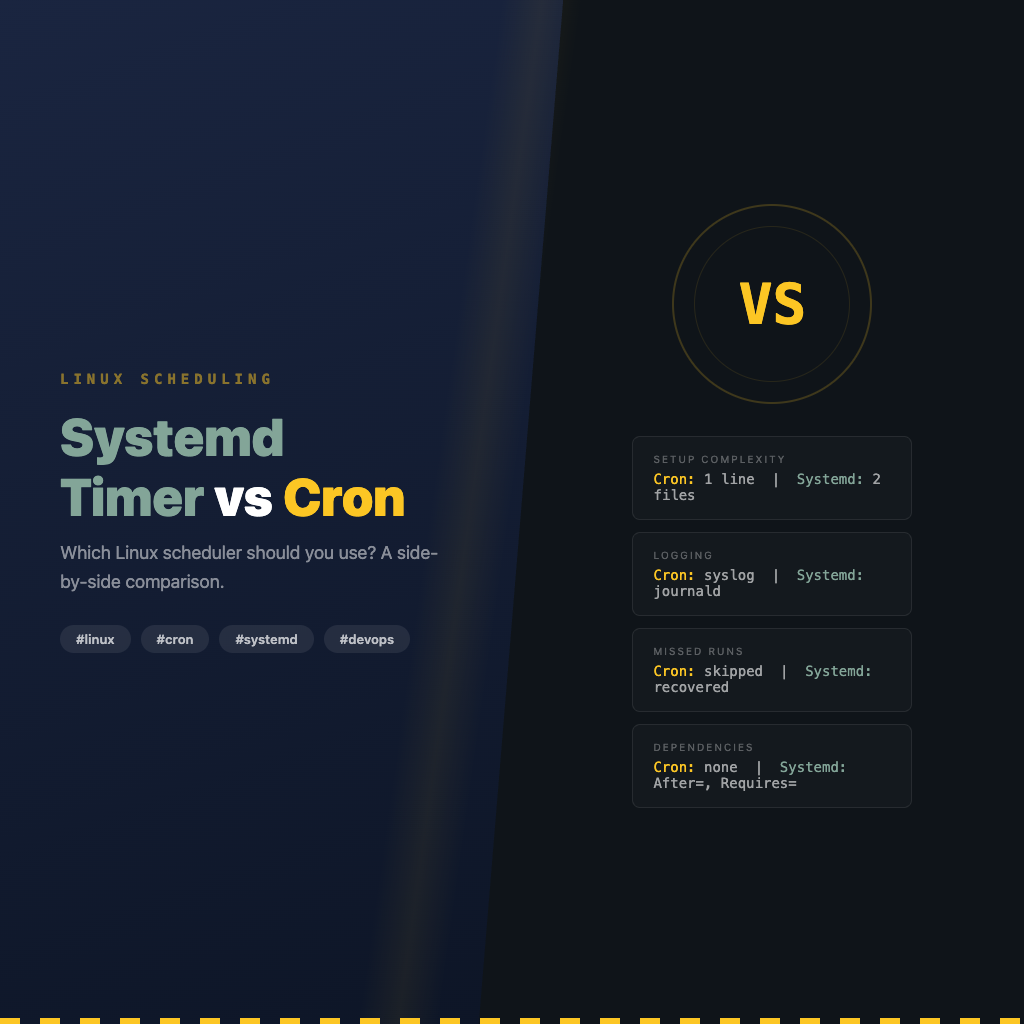
Systemd timers and cron are both Linux task schedulers, but they differ significantly in logging, missed-run handling, dependency management, and complexity. Cron is the traditional Unix scheduler — one line in crontab schedules a task. Systemd timers are the modern alternative built into systemd — they require two unit files but provide journald integration, Persistent=true for catching up on missed runs, and full service dependency control. Choose cron for simple recurring tasks; choose systemd timers when you need robust logging, recovery, or orchestration.
Overview
If you are new to scheduled tasks in Linux, start with What Is a Cron Job? for the fundamentals. This article assumes you understand basic cron syntax and focuses on comparing the two scheduling systems so you can make an informed decision.
Both cron and systemd timers solve the same problem: run a command at a specific time or interval. They diverge in architecture, configuration style, and operational capabilities.
Feature Comparison Table
| Feature | Cron | Systemd Timer |
|---|---|---|
| Configuration | Single line in crontab | Two files (.timer + .service) |
| Logging | Requires manual redirection to file or syslog | Automatic journald integration |
| Missed runs | Lost forever (no recovery) | Persistent=true runs missed tasks on next boot |
| Dependencies | None | Full systemd dependency graph (After=, Requires=) |
| Syntax complexity | Five-field time expression | OnCalendar= with human-readable format |
| Per-user scheduling | crontab -e per user | systemctl --user with user unit files |
| Resource control | None built-in | Full cgroup integration (MemoryMax=, CPUQuota=) |
| Randomized delay | Not supported | RandomizedDelaySec= to spread load |
| Monitoring | Check mail or log files | systemctl list-timers, journalctl -u |
| Boot-relative scheduling | @reboot only | OnBootSec=, OnUnitActiveSec= with fine granularity |
| File management | One file (crontab) | Two files per task in /etc/systemd/system/ |
| Portability | Works on any Unix/Linux | Only on systemd-based distributions |
How Cron Works
Cron is a daemon that wakes up every minute, reads schedule tables (crontabs), and executes matching entries. Each user has their own crontab, and a system-wide crontab exists at /etc/crontab.
A cron entry looks like this:
# minute  hour  day  month  weekday  command
0 3 * * * /usr/local/bin/backup.sh
This runs /usr/local/bin/backup.sh every day at 03:00.
Cron Pros
- Simplicity: One line per task. No boilerplate.
- Universal: Works on every Unix-like system, from 1970s machines to modern containers.
- Low overhead: The cron daemon is tiny and uses minimal resources.
- Quick setup:
crontab -e, type one line, save. Done. - Well-documented: Decades of tutorials, Stack Overflow answers, and man pages.
Cron Cons
- No built-in logging: Output goes to mail by default. You must redirect stdout/stderr manually.
- No missed-run recovery: If the machine is off when a task should run, it simply never runs.
- No dependency management: Cannot say “run after network is up” or “run after database starts.”
- Limited environment: Runs with a minimal PATH. Environment variable issues are the number-one debugging headache.
- No resource limits: A runaway cron script can consume all system memory or CPU.
- No randomized delay: If 100 servers all run a cron job at midnight, they all hit the backup server simultaneously.
How Systemd Timers Work
A systemd timer consists of two unit files:
- A
.servicefile — defines what to run (the command, user, environment, resource limits). - A
.timerfile — defines when to run (calendar expression, delays, persistence).
When the timer fires, systemd starts the corresponding service unit. The service runs, its output goes to the journal, and systemd tracks whether it succeeded or failed.
Systemd Timer Pros
- Journald logging: All stdout/stderr is captured automatically. Query with
journalctl -u backup.service. - Persistent timers:
Persistent=truemeans if the machine was off at the scheduled time, the task runs immediately on next boot. - Dependency management: Use
After=network-online.targetorRequires=postgresql.serviceto ensure prerequisites are met. - Resource control: Set
MemoryMax=512M,CPUQuota=50%, orIOWeight=100to limit resource usage. - Randomized delay:
RandomizedDelaySec=1hspreads execution across a time window to avoid thundering-herd problems. - Accurate tracking:
systemctl list-timersshows the next run time, last run time, and time until next trigger. - Conditional execution:
ConditionACPower=trueruns only on AC power.ConditionPathExists=checks for files.
Systemd Timer Cons
- Verbose: Two files per task instead of one line.
- Learning curve: Requires understanding systemd unit file syntax.
- Not portable: Only works on Linux distributions using systemd (most modern ones, but not Alpine, Void, or BSD).
- Harder to list all tasks:
systemctl list-timersshows active timers, but disabled timers require extra commands. - More steps to edit: Editing requires modifying files and running
systemctl daemon-reload.
Same Task, Both Ways: Daily Backup Script
Let us implement the same task — run /usr/local/bin/backup.sh every day at 03:00 — in both systems.
Cron Implementation
# Edit your crontab
crontab -e

# Add this single line:
0 3 * * * /usr/local/bin/backup.sh >> /var/log/backup.log 2>&1
That is it. One line. Note that we manually redirect output to a log file because cron does not log by default.
Systemd Timer Implementation
Step 1: Create the service file
# /etc/systemd/system/backup.service
[Unit]
Description=Daily backup script
After=network-online.target
Wants=network-online.target

[Service]
Type=oneshot
ExecStart=/usr/local/bin/backup.sh
User=root
StandardOutput=journal
StandardError=journal
Step 2: Create the timer file
# /etc/systemd/system/backup.timer
[Unit]
Description=Run backup daily at 03:00

[Timer]
OnCalendar=*-*-* 03:00:00
Persistent=true
RandomizedDelaySec=300

[Install]
WantedBy=timers.target
Step 3: Enable and start
sudo systemctl daemon-reload
sudo systemctl enable --now backup.timer
Step 4: Verify
# Check timer status
systemctl list-timers backup.timer

# View logs from last run
journalctl -u backup.service --since today
Key Differences in This Example
The cron version is one line. The systemd version requires two files and three commands. However, the systemd version automatically:
- Logs all output to the journal (queryable with
journalctl) - Runs the backup on next boot if the machine was off at 03:00
- Waits for network to be online before starting
- Adds up to 5 minutes of random delay to avoid exact-second spikes
Migration Guide: Converting Cron to Systemd Timer
Follow these steps to migrate an existing cron job to a systemd timer.
Step 1: Identify the Cron Entry
*/5 * * * * /usr/local/bin/check-disk-space.sh
This runs every 5 minutes.
Step 2: Create the Service File
# /etc/systemd/system/check-disk-space.service
[Unit]
Description=Check disk space usage

[Service]
Type=oneshot
ExecStart=/usr/local/bin/check-disk-space.sh
Step 3: Convert the Cron Schedule to OnCalendar
Common cron-to-systemd translations:
| Cron Expression | Systemd OnCalendar | Meaning |
|---|---|---|
* * * * * | *-*-* *:*:00 | Every minute |
*/5 * * * * | *-*-* *:00/5:00 | Every 5 minutes |
0 * * * * | *-*-* *:00:00 or hourly | Every hour |
0 3 * * * | *-*-* 03:00:00 or daily | Daily at 03:00 |
0 3 * * 1 | Mon *-*-* 03:00:00 | Weekly on Monday at 03:00 |
0 0 1 * * | *-*-01 00:00:00 or monthly | Monthly on the 1st |
0 3 * * 1-5 | Mon..Fri *-*-* 03:00:00 | Weekdays at 03:00 |
You can validate your expression with systemd-analyze calendar:
systemd-analyze calendar "*-*-* *:00/5:00"
This outputs the normalized form and the next trigger time.
Step 4: Create the Timer File
# /etc/systemd/system/check-disk-space.timer
[Unit]
Description=Run disk space check every 5 minutes

[Timer]
OnCalendar=*-*-* *:00/5:00
Persistent=true

[Install]
WantedBy=timers.target
Step 5: Activate and Remove Cron Entry
# Enable the timer
sudo systemctl daemon-reload
sudo systemctl enable --now check-disk-space.timer

# Verify it works
systemctl list-timers check-disk-space.timer

# Remove the old cron entry only after confirming the timer works
crontab -e
# Delete the line: */5 * * * * /usr/local/bin/check-disk-space.sh
Step 6: Handle Environment Variables
Cron jobs often rely on environment variables set in the crontab. In systemd, use the Environment= directive:
[Service]
Type=oneshot
ExecStart=/usr/local/bin/check-disk-space.sh
Environment="MAILTO=admin@example.com"
Environment="PATH=/usr/local/bin:/usr/bin:/bin"
Or load from a file:
[Service]
Type=oneshot
ExecStart=/usr/local/bin/check-disk-space.sh
EnvironmentFile=/etc/default/check-disk-space
Decision Framework: When to Use Which
Use Cron When:
- The task is a single command or simple script
- You do not need logging beyond basic mail/syslog
- The task is non-critical (missing a run is acceptable)
- You want the fastest possible setup
- You are on a non-systemd system (Alpine, FreeBSD, macOS)
- You are managing many simple tasks and want them all visible in one file (
crontab -l)
Use Systemd Timers When:
- You need reliable logging and easy troubleshooting (
journalctl -u myservice) - Missing a run is unacceptable (database backups, compliance reports)
- The task depends on other services (network, database, mount points)
- You need resource limits (prevent a backup script from consuming all RAM)
- You want randomized delays to spread load across a fleet
- The task requires complex execution logic (multiple ExecStart lines, pre/post hooks)
- You are already managing the service with systemd and want unified management
Quick Decision Flowchart
- Is the system running systemd? If no, use cron. No other option.
- Is the task a one-liner with no special requirements? Use cron. Faster to set up.
- Do you need journald logging? Use systemd timer.
- Do you need missed-run recovery? Use systemd timer with
Persistent=true. - Do you need dependency ordering? Use systemd timer with
After=directives. - Are you managing a fleet of servers? Use systemd timers for
RandomizedDelaySec=.
Advanced Systemd Timer Features
Monotonic Timers (Boot-Relative)
Instead of calendar-based scheduling, run relative to system boot:
[Timer]
OnBootSec=5min
OnUnitActiveSec=1h
This runs 5 minutes after boot, then every hour after the last run. Useful for tasks where exact clock time does not matter.
Conditional Execution
[Unit]
Description=Backup only when on AC power
ConditionACPower=true

[Service]
Type=oneshot
ExecStart=/usr/local/bin/backup.sh
The service will not start if the laptop is on battery.
Transient Timers (One-Off)
Create a timer without writing files:
systemd-run --on-calendar="2026-05-17 10:00" /usr/local/bin/one-time-task.sh
This creates a transient timer that fires once and cleans itself up.
Accuracy Control
By default, systemd may delay timer execution by up to 1 minute for power efficiency. Override this:
[Timer]
OnCalendar=*-*-* *:00/5:00
AccuracySec=1s
Set AccuracySec=1s for time-sensitive tasks.
Monitoring and Debugging
Cron Debugging
# Check cron daemon logs
grep CRON /var/log/syslog

# Check mail for output
cat /var/mail/username

# Test the command manually with cron's environment
env -i SHELL=/bin/sh PATH=/usr/bin:/bin HOME=/root /usr/local/bin/backup.sh
Systemd Timer Debugging
# List all active timers
systemctl list-timers --all

# Check timer status
systemctl status backup.timer

# View service logs
journalctl -u backup.service -n 50

# Test the service manually
sudo systemctl start backup.service

# Validate calendar expression
systemd-analyze calendar "Mon..Fri *-*-* 09:00:00"

# Show next trigger time for a timer
systemd-analyze calendar --iterations=5 "*-*-* *:00/5:00"
Performance and Resource Considerations
Cron’s footprint is negligible — the daemon uses under 1 MB of RAM and wakes once per minute. Systemd timers have slightly more overhead because they are part of the larger systemd process, but the difference is insignificant on modern hardware.
The real resource difference is in control: systemd lets you set MemoryMax=, CPUQuota=, and IOWeight= on the service, meaning a misbehaving script cannot bring down the system. Cron offers no such protection.
Conclusion
Both cron and systemd timers are production-ready schedulers. Cron wins on simplicity and portability. Systemd timers win on robustness, observability, and integration with the rest of the system.
For most Linux administrators working on modern distributions, the practical advice is:
- Keep existing cron jobs that work fine. There is no need to migrate everything.
- Use systemd timers for new tasks that benefit from logging, persistence, or dependencies.
- Use cron for quick, disposable scheduled commands where setup speed matters.
The two systems coexist without conflict. You can run both on the same machine, using each where it makes the most sense.
For a complete guide to cron syntax and examples, see What Is a Cron Job?.
Software developer passionate about technology. Sharing programming experiences and learning notes.