How to Run a Cron Job Every 5 Minutes (and Other Intervals)
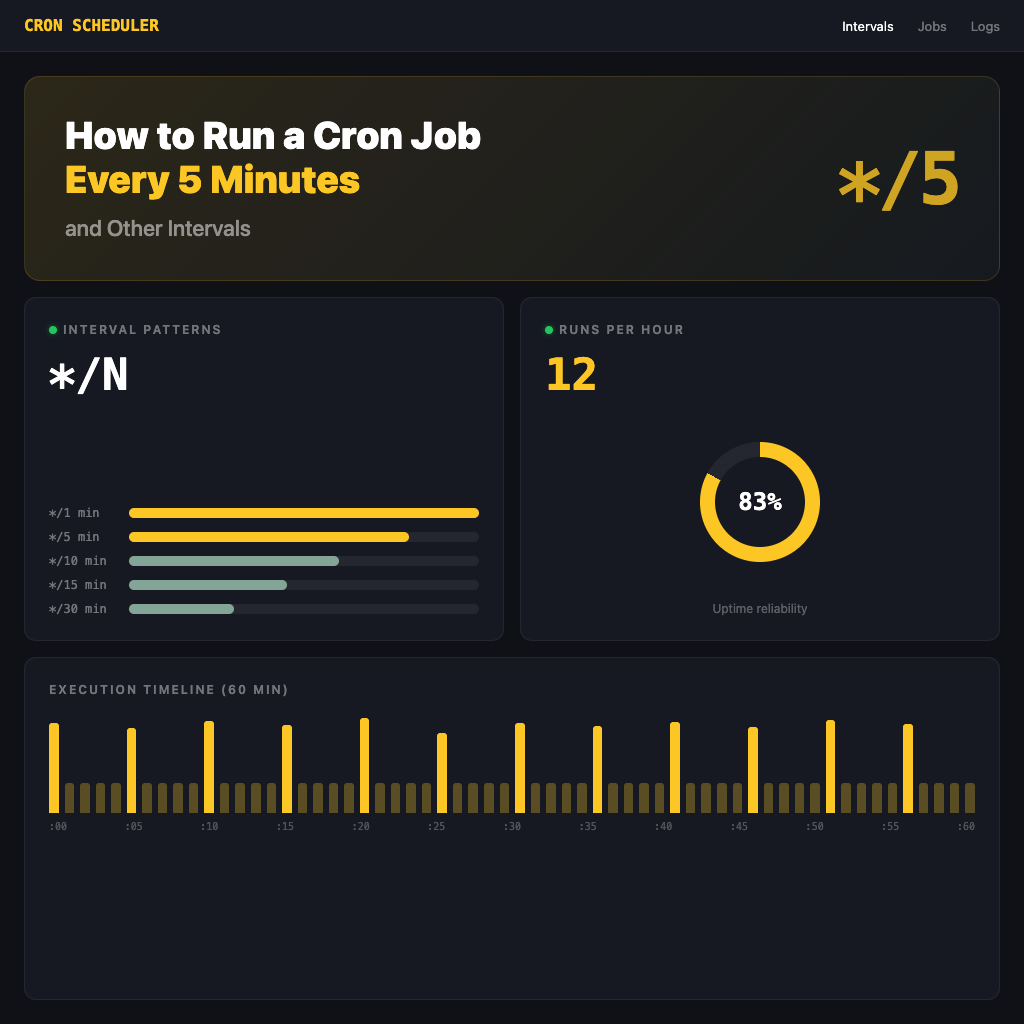
To run a cron job every 5 minutes, open your crontab with crontab -e and add the line */5 * * * * /path/to/your/script.sh. The */5 in the minute field tells cron to execute the command at every fifth minute — 0, 5, 10, 15, 20, 25, 30, 35, 40, 45, 50, and 55 minutes past the hour. This is by far the most common recurring interval in system administration, used for health checks, log rotation triggers, cache clearing, and monitoring scripts.
Quick Answer: Every 5 Minutes
Here is the complete cron expression to run a job every 5 minutes:
*/5 * * * * /path/to/your/script.sh
Breaking it down field by field:
*/5  — every 5 minutes (minute field)
*    — every hour (hour field)
*    — every day of the month (day field)
*    — every month (month field)
*    — every day of the week (weekday field)
To add this to your crontab, run:
crontab -e
Paste the line at the bottom of the file, save, and exit. Your job will begin running at the next 5-minute mark (e.g., if you save at 10:03, the first execution happens at 10:05).
To confirm it was saved correctly:
crontab -l
You should see your new entry listed alongside any existing cron jobs.
How the */N Syntax Works
The step value syntax */N is the key to interval-based scheduling in cron. The slash (/) character means “every Nth value” when combined with a range or wildcard.
When you write */5 in the minute field, cron interprets it as “starting from 0, fire every 5th minute.” This is equivalent to writing out the full list:
0,5,10,15,20,25,30,35,40,45,50,55 * * * * /path/to/script.sh
The */N shorthand works in any field:
*/5in the minute field: every 5 minutes*/2in the hour field: every 2 hours (0, 2, 4, 6, 8, 10, 12, 14, 16, 18, 20, 22)*/3in the day-of-month field: every 3 days (1, 4, 7, 10, …)
You can also combine step values with ranges. For example, 10-50/5 in the minute field means every 5 minutes but only between minute 10 and minute 50 (10, 15, 20, 25, 30, 35, 40, 45, 50).
One important detail: the step value always starts from the beginning of the range. */7 in the minute field produces 0, 7, 14, 21, 28, 35, 42, 49, 56 — it does not carry over across hours. When the clock hits the next hour, it resets and fires again at minute 0.
Common Interval Examples
Below is a reference table of the most frequently used interval-based cron expressions:
Minute-Based Intervals
| Interval | Cron Expression | Fires At (Minutes Past Hour) |
|---|---|---|
| Every 1 minute | */1 * * * * | 0, 1, 2, 3, … 59 |
| Every 2 minutes | */2 * * * * | 0, 2, 4, 6, 8, … 58 |
| Every 5 minutes | */5 * * * * | 0, 5, 10, 15, … 55 |
| Every 10 minutes | */10 * * * * | 0, 10, 20, 30, 40, 50 |
| Every 15 minutes | */15 * * * * | 0, 15, 30, 45 |
| Every 30 minutes | */30 * * * * | 0, 30 |
| Every 45 minutes | 0,45 * * * * | 0, 45 |
Note that */1 * * * * is equivalent to * * * * * since every 1 minute is the same as every minute.
For the 45-minute interval, there is no clean step-value shorthand because 60 is not evenly divisible by 45. You must list the minutes explicitly with a comma-separated list.
Hour-Based Intervals
| Interval | Cron Expression | Fires At (Hours) |
|---|---|---|
| Every 2 hours | 0 */2 * * * | 0:00, 2:00, 4:00, … 22:00 |
| Every 3 hours | 0 */3 * * * | 0:00, 3:00, 6:00, 9:00, … 21:00 |
| Every 4 hours | 0 */4 * * * | 0:00, 4:00, 8:00, 12:00, … 20:00 |
| Every 6 hours | 0 */6 * * * | 0:00, 6:00, 12:00, 18:00 |
For hourly intervals, always specify a fixed minute (usually 0) so the job fires once per interval rather than every minute of that hour. Writing * */2 * * * would run the command every minute during every second hour — 60 executions per trigger hour — which is almost certainly not what you want.
Step-by-Step Setup
Here is the full procedure to add a cron job that runs every 5 minutes on any Linux system:
Step 1: Open Your Crontab
crontab -e
This opens the crontab file for the current user. If this is your first time, you may be asked to choose an editor. Select nano for simplicity or vim if you are comfortable with it.
To edit the system-wide crontab (requires root):
sudo crontab -e
Step 2: Add the Cron Line
Navigate to the bottom of the file and add your job:
*/5 * * * * /home/user/scripts/health-check.sh
If your script requires environment variables or a specific shell, specify them explicitly:
*/5 * * * * /bin/bash -l -c '/home/user/scripts/health-check.sh'
Always use absolute paths for both the interpreter and the script. Cron runs with a minimal environment and does not source your .bashrc or .profile.
Step 3: Handle Output
By default, cron emails any output to the user. If you want to log output to a file instead:
*/5 * * * * /home/user/scripts/health-check.sh >> /var/log/health-check.log 2>&1
To discard all output silently:
*/5 * * * * /home/user/scripts/health-check.sh > /dev/null 2>&1
Step 4: Save and Exit
In nano, press Ctrl+O to save and Ctrl+X to exit. In vim, type :wq. After saving, cron automatically picks up the changes — no restart is needed.
Step 5: Confirm the Entry
crontab -l
This lists all active cron jobs for your user. Verify your new line appears correctly.
Verifying Your Cron Job Runs
Adding a cron entry does not guarantee it works. Scripts may have permission issues, missing dependencies, or path problems. Here is how to confirm execution.
Check System Logs
On Debian/Ubuntu:
grep CRON /var/log/syslog | tail -10
On RHEL/CentOS/Fedora (systemd):
journalctl -u crond --since "10 minutes ago"
You should see entries like:
May 16 10:05:01 server CRON[12345]: (user) CMD (/home/user/scripts/health-check.sh)
Add a Timestamp to Your Log
A simple way to verify timing is to have your script (or cron line) append a timestamp:
*/5 * * * * echo "$(date): running" >> /tmp/cron-test.log
After 10 minutes, check the file:
cat /tmp/cron-test.log
You should see two entries, 5 minutes apart.
Common Reasons a Cron Job Fails
- Permission denied — Make your script executable:
chmod +x /path/to/script.sh - Command not found — Use absolute paths (
/usr/bin/python3, notpython3) - Environment variables missing — Cron does not load your shell profile; export variables inside the script or define them in the crontab
- Wrong user — A job in root’s crontab cannot access files owned by another user without proper permissions
- Mail transport agent not configured — If cron tries to email output but no MTA is installed, it may silently fail; always redirect output explicitly
Use the Cron Service Status
Ensure the cron daemon is actually running:
systemctl status cron        # Debian/Ubuntu
systemctl status crond       # RHEL/CentOS
If the service is stopped, start it:
sudo systemctl start cron
sudo systemctl enable cron
Sub-Minute Intervals (Every 30 Seconds)
Cron’s smallest granularity is one minute. You cannot write */0.5 or use seconds in a crontab expression. However, there is a well-known workaround using two cron entries combined with sleep:
* * * * * /home/user/scripts/task.sh
* * * * * sleep 30 && /home/user/scripts/task.sh
The first line runs the script at the top of every minute (second 0). The second line waits 30 seconds and then runs the same script. The result is execution every 30 seconds.
For every 15 seconds, use four entries:
* * * * * /home/user/scripts/task.sh
* * * * * sleep 15 && /home/user/scripts/task.sh
* * * * * sleep 30 && /home/user/scripts/task.sh
* * * * * sleep 45 && /home/user/scripts/task.sh
This technique works but has limitations:
- It adds complexity and can be hard to maintain
- If the script takes longer than the interval, overlapping executions may occur
- Systemd timers with
OnUnitActiveSecor dedicated tools likewatchare better alternatives for true sub-minute scheduling
To prevent overlapping runs, use flock:
* * * * * /usr/bin/flock -n /tmp/task.lock /home/user/scripts/task.sh
* * * * * sleep 30 && /usr/bin/flock -n /tmp/task.lock /home/user/scripts/task.sh
The -n flag causes flock to exit immediately if the lock is already held, preventing concurrent execution of the same script.
For production systems requiring precise sub-minute scheduling, consider systemd timers:
# /etc/systemd/system/task.timer
[Unit]
Description=Run task every 30 seconds

[Timer]
OnBootSec=30
OnUnitActiveSec=30
AccuracySec=1s

[Install]
WantedBy=timers.target
This gives you second-level precision without cron workarounds.
Further reading:
Software developer passionate about technology. Sharing programming experiences and learning notes.