Crontab Syntax Explained: The Complete Time Format Guide
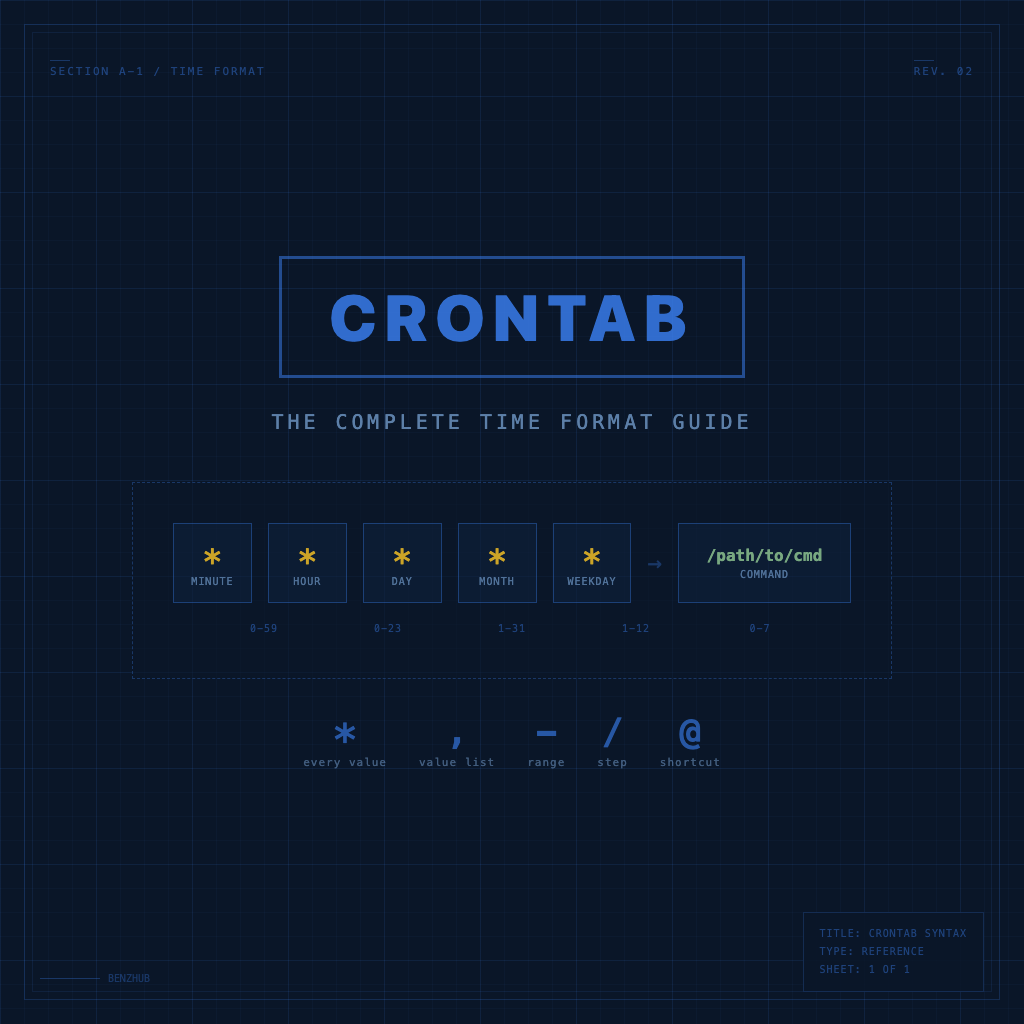
Crontab syntax is the time format used by the cron daemon on Linux and Unix systems to determine when a scheduled task should run. It consists of five time-and-date fields followed by the command to execute. Each field represents a unit of time — minute, hour, day of month, month, and day of week — and together they define a precise or recurring schedule. Once you understand how to read and write these five fields, you can schedule anything from a script that runs every minute to a job that fires only on the last Friday of each quarter.
The 5-Field Time Format
Every line in a crontab file follows this structure:
┌───────────── minute (0 - 59)
│ ┌───────────── hour (0 - 23)
│ │ ┌───────────── day of month (1 - 31)
│ │ │ ┌───────────── month (1 - 12)
│ │ │ │ ┌───────────── day of week (0 - 7, 0 and 7 = Sunday)
│ │ │ │ │
│ │ │ │ │
* * * * *  command_to_execute
The fields are separated by spaces or tabs. After the five time fields comes the shell command (or script path) that cron will run. Cron evaluates each field independently; when the current time matches ALL five fields simultaneously, the command fires.
Here is a concrete example broken down:
30 2 * * 1  /usr/local/bin/backup.sh
│  │ │ │ │
│  │ │ │ └── Monday
│  │ │ └──── every month
│  │ └────── every day of month
│  └──────── 2 AM (hour 2)
└─────────── minute 30
This runs /usr/local/bin/backup.sh at 2:30 AM every Monday.
Field Reference Table
| Field | Allowed Values | Allowed Special Characters |
|---|---|---|
| Minute | 0 - 59 | * , - / |
| Hour | 0 - 23 | * , - / |
| Day of Month | 1 - 31 | * , - / |
| Month | 1 - 12 or JAN-DEC | * , - / |
| Day of Week | 0 - 7 or SUN-SAT | * , - / |
A few notes on values:
- Day of week: both
0and7represent Sunday. Most systems also accept three-letter abbreviations likeMON,TUE,WED. - Month: you can use numeric values or three-letter abbreviations (
JAN,FEB,MAR, etc.). Abbreviations are case-insensitive on most systems. - Day of month: cron does not validate whether the day exists for the specified month. If you schedule a job for day 31 in a month that has only 30 days, the job simply does not run that month.
Special Characters Explained
Crontab uses four special characters to create flexible scheduling patterns. They can be combined within a single field for precise control.
Asterisk (*) — Every Value
The asterisk is a wildcard that matches all valid values for a field. It is the most common character you will see.
* * * * *  /path/to/command    # every minute of every hour of every day
0 * * * *  /path/to/command    # at minute 0 of every hour
When you place * in the hour field, it means “every hour.” When every field is *, the job runs once per minute.
Slash (/) — Step Values
The slash defines intervals. The syntax is start/step or */step. It tells cron to trigger every step values within the allowed range.
*/5 * * * *   /path/to/command   # every 5 minutes (0, 5, 10, 15 ... 55)
0 */3 * * *   /path/to/command   # every 3 hours at minute 0 (0, 3, 6, 9 ... 21)
10-40/10 * * * * /path/to/command # at minutes 10, 20, 30, 40
Without a start value (*/n), cron begins counting from the lowest allowed value for that field. You can also combine a range with a step: 10-40/10 fires at 10, 20, 30, and 40.
Hyphen (-) — Ranges
The hyphen defines an inclusive range of values.
0 9-17 * * *    /path/to/command   # every hour from 9 AM to 5 PM
0 0 * * 1-5     /path/to/command   # midnight on weekdays (Mon-Fri)
0 0 1-15 * *    /path/to/command   # midnight on the 1st through 15th
Ranges are inclusive on both ends. 9-17 includes hours 9, 10, 11, 12, 13, 14, 15, 16, and 17.
Comma (,) — Lists
The comma separates individual values or sets within a field.
0 0 1,15 * *    /path/to/command   # midnight on the 1st and 15th
30 8 * * 1,3,5  /path/to/command   # 8:30 AM on Monday, Wednesday, Friday
0 0,12 * * *    /path/to/command   # midnight and noon every day
You can mix commas with ranges: 1,5,10-15 means values 1, 5, 10, 11, 12, 13, 14, and 15.
Shortcut Strings (@reboot, @daily, @weekly, @monthly, @yearly)
Most modern cron implementations support predefined schedule strings that replace the five-field syntax entirely. These make your crontab more readable for common schedules.
| Shortcut | Equivalent | Description |
|---|---|---|
@reboot | (runs once at startup) | Runs when the cron daemon starts (system boot) |
@yearly | 0 0 1 1 * | Once a year, at midnight on January 1st |
@annually | 0 0 1 1 * | Same as @yearly |
@monthly | 0 0 1 * * | Once a month, at midnight on the 1st |
@weekly | 0 0 * * 0 | Once a week, at midnight on Sunday |
@daily | 0 0 * * * | Once a day, at midnight |
@midnight | 0 0 * * * | Same as @daily |
@hourly | 0 * * * * | Once an hour, at minute 0 |
Usage example:
@reboot  /usr/local/bin/start-app.sh
@daily   /usr/local/bin/cleanup-logs.sh
@weekly  /usr/local/bin/full-backup.sh
The @reboot shortcut is especially useful for starting services or daemons that must be available immediately after the system boots, without requiring a systemd service file.
Limitations: shortcut strings cannot be modified with special characters. You cannot write @daily/2 to mean “every two days.” For anything beyond these standard intervals you must use the five-field syntax.
Combining Characters for Complex Schedules
The real power of crontab syntax emerges when you combine multiple special characters in a single expression. Here are several real-world examples that demonstrate advanced scheduling.
Business hours only, every 15 minutes
*/15 9-17 * * 1-5 /path/to/command
This runs at minutes 0, 15, 30, and 45 during hours 9 through 17 (9 AM to 5 PM), Monday through Friday only. It produces 36 executions per weekday.
Twice daily on specific months
0 6,18 * 3,6,9,12 * /path/to/command
Runs at 6 AM and 6 PM every day, but only in March, June, September, and December (end-of-quarter months).
Every 10 minutes during the first half of every hour
0-30/10 * * * * /path/to/command
Fires at minutes 0, 10, 20, and 30 of every hour. The range 0-30 restricts the step to the first half of the hour.
First Monday of the month at 3 AM
Crontab alone cannot directly express “the first Monday of the month” because the day-of-month and day-of-week fields work with OR logic when both are specified (unless one is *). The common workaround uses a conditional:
0 3 1-7 * 1 /path/to/command
This runs at 3 AM on every Monday that falls within the first 7 days of the month. However, because of the OR behavior, this will also run on days 1 through 7 regardless of the weekday on some cron implementations. The safer approach is:
0 3 * * 1 [ "$(date +\%d)" -le 7 ] && /path/to/command
This runs every Monday at 3 AM but only executes the actual command if the current day of the month is 7 or less.
Every weekday at multiple specific times
0 8,12,17 * * 1-5 /path/to/command
Runs at 8 AM, noon, and 5 PM on weekdays — ideal for sending shift-change notifications or status reports.
Common Gotchas and Tips
1. Day-of-month and day-of-week OR logic
When you specify both a day-of-month value and a day-of-week value (neither is *), most cron implementations treat them with OR logic. The command runs if EITHER condition is true. This frequently surprises users who expect AND logic.
# WARNING: Runs on the 15th AND every Friday (not "Friday the 15th")
0 0 15 * 5  /path/to/command
To achieve AND logic, keep one field as * and add a condition in the command itself.
2. Environment differences
Cron executes commands with a minimal environment. Your shell’s PATH, aliases, and environment variables are not available by default. Always use absolute paths for commands and explicitly set variables at the top of your crontab:
PATH=/usr/local/bin:/usr/bin:/bin
SHELL=/bin/bash

*/5 * * * *  /usr/local/bin/myscript.sh
3. Output and email
By default, cron emails any output (stdout and stderr) to the crontab owner. To suppress output, redirect it:
*/5 * * * * /path/to/command > /dev/null 2>&1
To log output for debugging:
*/5 * * * * /path/to/command >> /var/log/myjob.log 2>&1
4. Timezone awareness
Cron uses the system timezone unless configured otherwise. If your server runs in UTC but you need a job at 9 AM local time, either convert the time or set the CRON_TZ variable (supported by some implementations):
CRON_TZ=America/New_York
0 9 * * *  /path/to/command
5. Overlapping executions
If a job takes longer than its scheduling interval, cron will happily start another instance. Use a lock file or flock to prevent overlap:
*/5 * * * * /usr/bin/flock -n /tmp/myjob.lock /path/to/command
6. Percent signs need escaping
In crontab, the % character is interpreted as a newline (and the first % marks the beginning of stdin data passed to the command). Always escape percent signs with a backslash:
0 0 * * * /path/to/command --date="$(date +\%Y-\%m-\%d)"
7. Validate before deploying
Use online cron expression validators or the crontab -l command to verify your expressions. A single typo can mean your backup job runs every minute instead of every month.
Further reading:
Software developer passionate about technology. Sharing programming experiences and learning notes.